1. Enter Your Text
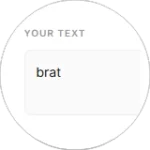
Start by typing the word, name, phrase, or short message you want to use. You can create a personal name, funny quote, meme text, social media caption, or any other short phrase.
If you want to experiment with words specifically, you can also try our Brat Word Generator.
For the classic Brat look, short lowercase text usually works best because it keeps the design clean and easy to recognize.
2. Choose Your Background Color
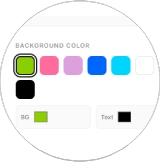
Pick a background color that matches your design. You can use the familiar Brat green look or try another color if you want something different.
A bright green background gives your design the classic Brat aesthetic, while colors such as black, white, pink, or blue can give it a more personal look.
3. Adjust the Font and Style
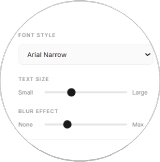
Customize the text to get the look you want. Depending on the available options, you can adjust the font style, text size, spacing, alignment, or other visual settings.
You can keep the design close to the classic Brat style or experiment with the settings to create your own version.
4. Add Effects
Try available effects to give your text more character. A soft blur effect is one of the visual details often associated with Brat-style graphics.
Don’t overdo the effects. A simple design with bold text and a clean background can often create the strongest result.
5. Check the Preview
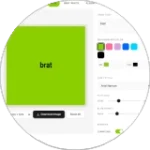
Use the preview to see how your design looks before saving it. Make small changes to the text, color, size, or effects until everything looks right.
A live preview also makes it easier to experiment with different styles without having to generate a new image every time.
6. Download Your Brat Text
Once you’re happy with the result, click the Download button to save your Brat-style text image. You can then use it for Instagram posts, TikTok content, memes, profile pictures, wallpapers, covers, or personal projects.
The whole process can take less than a minute, making the Brat Font Text Generator an easy option when you want a quick and creative text graphic.